LED Display Refresh Rate
What is LED Display Refresh Rate?
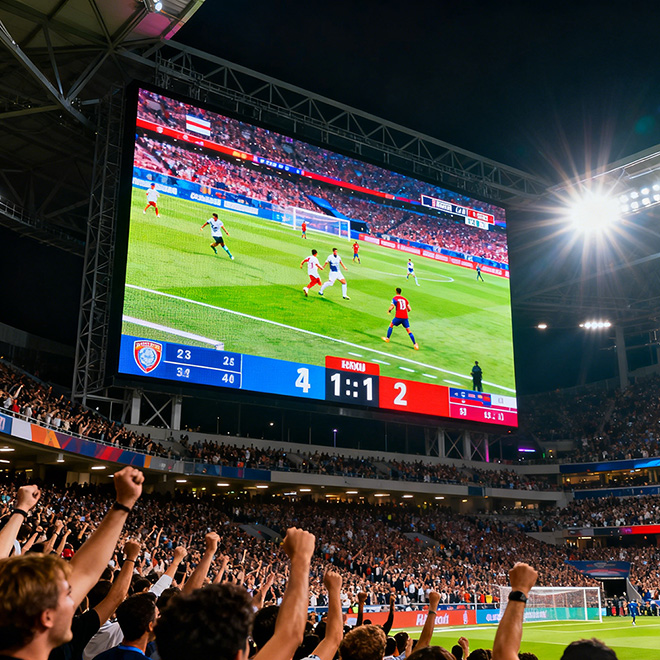
LED stands for Light Emitting Diode. In commercial LED displays, LEDs are the individual light sources that form each pixel on large-format screens. The refresh rate of an LED display is the number of times per second the screen redraws the image, measured in Hertz (Hz). It determines how often the display updates the content sent from the source, which is crucial for broadcast, live events, and high-motion digital signage.
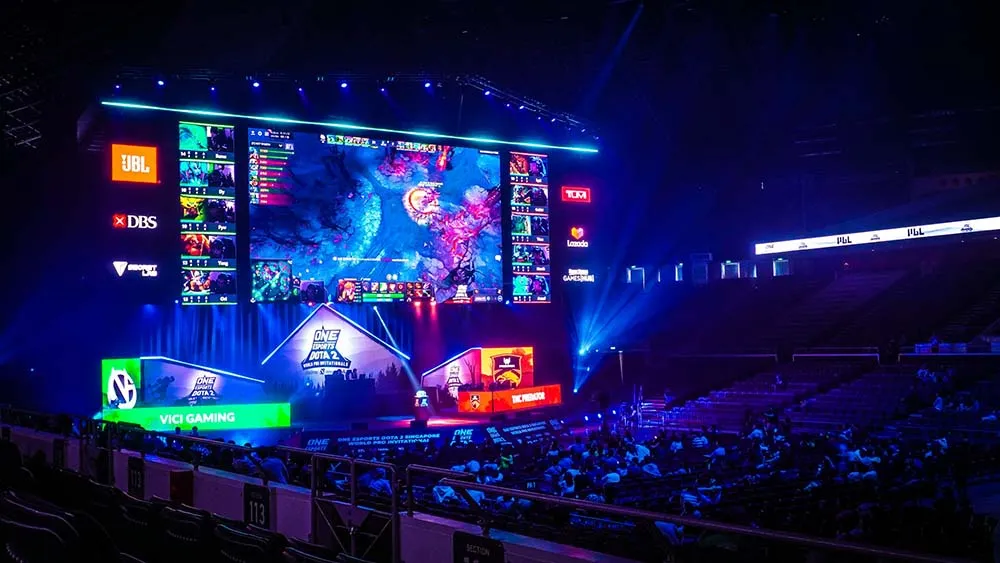
Common refresh rate values for professional LED displays include 60 Hz, 120 Hz, 240 Hz, 480 Hz, 960 Hz, and typically 1,920 Hz or 3,840 Hz for high-performance models used in studios and live productions. These numbers refer to the frame update rate—the frequency at which the panel receives and displays new frames. Unlike consumer monitors, commercial LED walls often operate at much higher refresh rates to eliminate visible scan lines and camera flicker.
It is important to distinguish refresh rate from PWM (Pulse Width Modulation) frequency and scanning frequency. PWM frequency controls the dimming of LEDs (typically 1,000–10,000 Hz) and can cause flicker if too low. Scanning frequency refers to the sub-frame drive rate (e.g., 1/8 or 1/16 scan) and is related to how the display multiplexes rows and columns. These are not the same as the panel refresh rate, though they all affect perceived image quality.
How LED Displays are Driven: Scanning, Multiplexing, PWM and Driver Architectures
Commercial LED displays are not driven like a single monolithic panel. Instead, they use scanning and multiplexing to control thousands or millions of individual LEDs with a limited number of driver pins.
Scanning ratio (e.g., 1/8, 1/16) indicates how many rows are illuminated simultaneously. A 1/16 scan means only 1/16 of the rows are active at any moment, and the display cycles through all rows rapidly to create a continuous image. This reduces driver cost but requires higher instantaneous brightness and can introduce visible scan lines if the refresh rate is too low.
PWM dimming is used to control the brightness of each LED. The LED is switched on and off at a high frequency (the PWM frequency), and the duty cycle determines perceived brightness. If the PWM frequency is below about 1,000 Hz, it can cause visible flicker or stroboscopic effects, especially on fast-moving content or when filmed with a camera.
Constant-current drivers are the most common architecture, providing stable current to each LED. Direct-drive (common in microLED and COB) uses a separate driver for each pixel, enabling very high refresh rates and better uniformity, but at a higher cost.
The interaction between scan ratio, PWM frequency, and panel refresh rate determines the final visual quality. For broadcast and live events, a refresh rate of at least 1,920 Hz is recommended to avoid camera flicker, while high-motion content such as sports or fast-paced advertisements benefits from 2,400 Hz or higher.
How Refresh Rate Affects Image Quality, Motion Blur, Eye Fatigue and Frame-Rate Compatibility
A higher refresh rate improves image quality in several ways relevant to commercial installations:
- Reduced motion blur: Higher refresh rates mean each frame is displayed for a shorter duration, reducing the smearing or ghosting effect on fast-moving objects, which is critical for high-impact digital signage and live sports.
- Lower eye fatigue: Flicker from low refresh rates or PWM can cause eye strain for viewers, especially in indoor or close-viewing environments. Smooth motion reduces this strain, enhancing viewer comfort.
- Better frame-rate compatibility: Content sources typically run at 24, 30, 60, or 120 fps. A 60 Hz panel can display 30 and 60 fps natively, but 24 fps content will show judder (uneven motion). A 120 Hz panel can handle 24, 30, 60, and 120 fps evenly, making it more versatile for varied content types.
Frame rate vs. refresh rate: The frame rate is the number of frames per second the source sends. The refresh rate is how many times the display can redraw. If they do not match, the display must perform frame rate conversion, which can introduce tearing, stuttering, or artifacts. For digital signage, 60–120 Hz is typical, while live broadcast often requires 1,920 Hz or more to avoid camera flicker.
Camera compatibility: When filming an LED display, the camera shutter speed and the display refresh rate interact. If the refresh rate is not a multiple of the camera’s frame rate (e.g., 1/50, 1/60 shutter), black bands or flicker appear. This is why many broadcast-grade displays support sync phase adjustment and offer frequencies like 2,400 Hz or 3,840 Hz to provide more alignment options.
| Refresh Rate (Hz) | Typical Application | Motion Clarity | Camera Flicker Risk |
|---|---|---|---|
| 60 | Basic indoor signage, general advertising | Moderate | High |
| 120 | Retail, corporate lobbies, rental events | Good | Moderate |
| 240 | High-end retail, simulation, premium events | Very Good | Low |
| 1,920 – 3,840 | Broadcast studios, live concerts, sports stadiums | Excellent | Very Low |
For commercial applications, the choice of refresh rate directly impacts the perceived quality and technical feasibility of camera integration. Higher refresh rates are almost always preferred for professional installations.
Measuring, Testing and Troubleshooting LED Refresh/Flicker (Tools, Procedures and How to Change Settings)
Accurate measurement of refresh rate and flicker requires specific tools commonly used in the AV integration industry. The most common methods are:
- Photodiode + Oscilloscope: A photodiode is placed against the screen, and the oscilloscope measures the light output waveform. The refresh rate is visible as the fundamental frequency of the waveform.
- Flicker meter (e.g., UPRtek MF250N): These handheld devices measure refresh rate, flicker index, and modulation depth directly, providing fast on-site diagnostics.
- Camera test: Set a professional camera with a known shutter speed (e.g., 1/50, 1/60, 1/100) and point it at the display. If horizontal bars appear, the refresh rate and shutter are not synchronized.
- Software tools: Most LED controllers (e.g., NovaStar, Colorlight) have built-in diagnostics that report the current refresh rate and scan settings.
Step-by-Step Measurement Procedure (using oscilloscope)
- Set the display to a 50% gray pattern (or a white field at 50% brightness).
- Place the photodiode against the screen surface.
- Connect the photodiode to the oscilloscope.
- Set the oscilloscope timebase to capture a few cycles (e.g., 20 ms/div).
- Read the frequency from the waveform period. If the period is 1/120 Hz = 8.33 ms, then refresh is 120 Hz.
- Note the PWM frequency as a higher-frequency component in the waveform.
How to Change Refresh Rate Settings on Commercial LED Controllers
Changing the refresh rate on a commercial LED display is typically done through the LED controller software (e.g., NovaStar, Colorlight, Huidu). The process usually involves:
- Open the controller’s configuration software (e.g., NovaStar LCT, Colorlight LEDVision).
- Navigate to “Screen Configuration” or “Output Settings”.
- Select the desired refresh rate from a dropdown list (e.g., 60, 120, 240, 960, 1920, 3840 Hz). Some controllers offer a “high refresh mode” which increases the rate but may slightly reduce brightness.
- Apply the settings and send them to the receiving cards. The change takes effect immediately.
- If the system includes a video processor or scaler, ensure its output matches the selected refresh rate to avoid signal mismatch.
Note that changing the scan ratio (e.g., from 1/8 to 1/16) is usually a factory setting and not recommended for field adjustment unless you have detailed knowledge of the panel’s driver specifications.
Troubleshooting Common Issues
- Visible scan lines: Increase the refresh rate or reduce the scan ratio. Ensure the controller is set to the correct driver configuration.
- Camera flicker: Adjust the refresh rate to a multiple of the camera’s shutter speed. Use the “sync phase” or “genlock” feature if available on the controller or processor.
- PWM flicker: Increase the PWM frequency in the controller settings (if adjustable). Some high-end controllers allow PWM up to 10 kHz.
- Judder in 24 fps content: Use a refresh rate that is a multiple of 24 (e.g., 120 Hz or 240 Hz) and enable frame interpolation if supported by the video processor.
Higher refresh rates do consume more power because the driving circuitry is active more frequently. The increase is typically 5–15% depending on the scan ratio and LED type, which is acceptable for most commercial installations given the benefits in image quality.
Frequently Asked Questions
What does LED mean?
LED stands for Light Emitting Diode. In commercial displays, LEDs are the individual light sources that form each pixel on large-format screens, controlled electronically to create images and video.
What is refresh rate for LED displays?
Refresh rate is the number of times per second the display updates the image, measured in Hertz (Hz). It determines motion smoothness and flicker. Common professional values are 60, 120, 240, 960, 1920, and 3840 Hz.
What refresh rate is recommended for live broadcast and studio use?
For broadcast and studio environments, a refresh rate of 1,920 Hz or higher is strongly recommended to eliminate camera flicker and ensure clean on-air visuals. Rates of 3,840 Hz are increasingly common for high-end productions.
How do I measure the refresh rate of my LED display?
Use a photodiode and an oscilloscope to capture the light waveform, then read the fundamental frequency. Alternatively, use a flicker meter or a camera test with known shutter speeds to visually check for flicker bands.
Can LED display refresh rate cause flicker when filmed by a camera?
Yes. If the refresh rate is not synchronized with the camera’s shutter speed (e.g., 1/50, 1/60), dark bands or flicker will appear. Using a refresh rate that is a multiple of the shutter speed and enabling genlock can eliminate this.
How do I change the refresh rate settings on an LED panel or controller?
Access the controller software (e.g., NovaStar LCT, Colorlight LEDVision), navigate to screen configuration, and select the desired refresh rate from the output settings. Apply the settings to the receiving cards for immediate effect.
Get Our Latest Products & News
Subscribe to our newsletter for fresh product launches, industry insights, and exclusive offers tailored for global partners. Stay ahead with updates that matter to your business!